
Guided 16-Step Setup Wizard for Environmental Operations
Configure sites, assets, vendors, workflows, financial rules, proof rules, approvals, SLAs, and AP closeout in one guided wizard with completeness validation and immutable workflow versioning.
16 guided steps
Completeness validation before publish
Immutable workflow versioning
Built-in test simulation
Every configuration the workflow engine needs
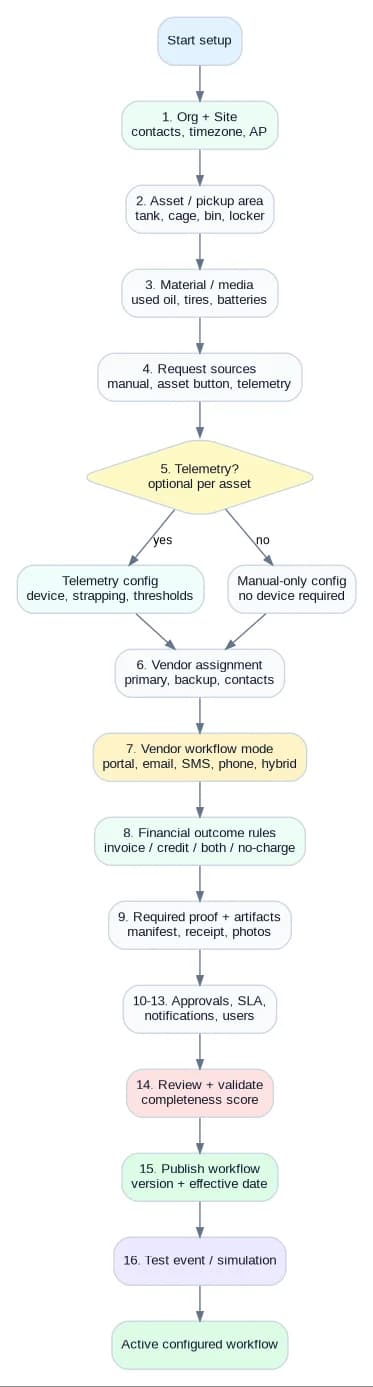
Each step has its own required fields and validation. Steps can be revisited until publish. After publish, changes create a new effective version; historical events keep using the version they were created under.
Organization + Site
Org, region, site, timezone, primary contacts, AP and compliance owners.
Asset / pickup area
Tanks, cages, bins, lockers, pickup areas with material and capacity context.
Material / media
Used oil, antifreeze, tires, batteries, scrap, hazmat, and custom media definitions.
Request sources
Manual, asset button, telemetry, recurring, and emergency request sources.
Telemetry (optional per asset)
Device, strapping table, thresholds, anomaly rules — or mark as manual-only.
Vendor assignment
Primary vendor, backup vendor, contact roles for each material at each site.
Vendor workflow mode
Portal, email, secure link, phone, SMS (where enabled), hybrid, or internal-only.
Financial outcome rules
Invoice, credit, no-charge, net settlement, dispute — allowed and default outcomes.
Required proof + artifacts
Pickup proof, manifest, BOL, weigh ticket, photos, chain-of-custody by workflow.
Approvals + thresholds
Service Manager, Level 2, Level 3, AP, credit/hazmat/emergency rules.
SLA policy
Acknowledgement, schedule, completion, proof, AP closeout SLAs per workflow.
Notifications
Recipients, channels, templates, reminders, escalation rules.
Users + roles
Invite users, assign sites/assets/roles, set notification preferences.
Review + validate
Completeness score, missing fields, dependency check, before publish.
Publish workflow
Effective date, immutable configuration version. New events use the new version.
Test simulation
Basic event simulation to confirm the configuration works end to end.
Configuration Completeness — find gaps before they hurt
The Configuration Completeness report flags every missing piece before the workflow goes live. Publish is blocked until required fields are valid.
Missing vendor mode
Page surfaces every asset that has no vendor workflow mode assigned (portal / email / phone / hybrid).
Missing proof rule
Pickup workflows that have no required-artifact checklist surface in the configuration completeness report.
Missing financial rule
Materials or vendors with no allowed financial outcome rule are flagged before publish.
Missing internal owner
Non-portal vendor workflows that lack an internal manual owner are blocked from publish.
Missing AP closeout rule
Workflows with no AP gate or AP coding fields are flagged before publish.
Telemetry mapping gaps
Telemetry-enabled assets without device assignment, strapping, or thresholds are flagged.
One workflow component, four modes
The visual workflow component works in four operating modes against the same underlying data. Setup configures it; Live operations executes it; Training teaches it; Audit reviews it.
Setup Wizard mode
Configure sites, assets, vendors, workflow rules, telemetry, proof, finance, approvals, SLA, notifications, and AP closeout. Validates completeness before publish.
Live Operational mode
Execute ticket / event / work-order progress with blockers, owner, SLA, proof, financial, and AP state visible on every node.
Training / guided walkthrough mode
Teach each role what they own, what documents are needed, where delays happen, and why each step matters — using sample/simulation data.
Audit / review mode
Read-only view of immutable timeline, configuration version, evidence, proof package, financial history, and AP handoff — for auditors, compliance, AP, and admin.
Nine step states — every node tells you what to do next
Each workflow node has one of nine states. The state explains what the user can or can't do at that step, who owns the next action, and what's blocking progress. No color-only signaling — every state has an icon and a text label.
Not Started
Step has not begun and no valid draft exists. Click opens the create screen if permitted.
In Progress
Draft or partial completion exists. Click opens the edit/continue screen.
Complete
Completion criteria met and audit event written. Click opens review mode.
Blocked
Cannot proceed due to missing prerequisite, data, proof, permission, or rejection. Click shows blocker details and fix path.
Waiting on External
Vendor, partner, or external approver owns next action. Click opens reminder/escalation controls.
Waiting on Internal Review
Internal approver/reviewer owns next action. Click opens the queue/detail screen.
Exception
SLA miss, discrepancy, AP rejection, telemetry failure, or other exception. Click opens the exception resolution screen.
Optional
Configured as optional for this workflow. Click opens an optional action screen or review.
Not Applicable
Disabled by configuration (e.g., a telemetry node on a manual-only tire area). Read-only explanation; hidden in simplified mode.
Roles the system supports out of the box
Twelve role types map to the configuration in setup step 13. Permissions are enforced at the API layer (not just the UI). Location and asset-level scopes are configurable per role.
Dealer Group Admin
All sites, rollups, vendor performance, approvals; org and site templates; group exceptions.
Dealership Admin
One or more assigned sites; users, vendors, assets, configuration; site approvals and audit gaps.
Service Manager
Manual request review, vendor coordination, proof acceptance, financial review, AP closeout responsibilities.
Fixed Ops Manager
Multi-bay or multi-department oversight; approval routing for service-related environmental events.
Compliance Manager
SPCC plan review, integrity inspections, incident reporting, audit pack readiness.
AP / Finance
AP handoff queue, AP rejection / correction, financial approvals, accounting handoff.
Technician
Asset button requests, manual request creation, proof and inspection capture, training records.
Vendor Admin
Vendor portal user management, vendor profile, compliance artifacts, scheduling and proof workflows.
Vendor Dispatcher
Pickup scheduling, route assignment, vendor team allocation, acknowledgement queue.
Vendor Technician
Stop completion, proof upload, weigh tickets, completion notes.
Internal Ops Advisor
Manual vendor console for non-portal vendors; manual acknowledgement, communication log, exception handling.
Auditor / Inspector
Read-only access to evidence, audit pack, configuration snapshots, financial history; can request exports.
Workflow changes don't rewrite history
Each published configuration is an immutable version. Adding telemetry to a previously manual asset publishes version 2 — historical manual events stay on version 1, and new events start using version 2. This keeps audit history reproducible regardless of when vendor terms or workflow settings change.

Every step is a screen, not a static diagram
Clicking a workflow step opens the screen needed to complete that step. Blocked steps explain why — missing owner, missing data, missing proof — and show the fix path. Every significant transition writes an audit event.

What the wizard is, and what it isn't
The Setup Wizard is the operational control surface for dealership onboarding. It guides administrators through every configuration the workflow engine needs to run live events, and it surfaces missing data before the workflow is published.
Advanced capabilities such as accounting/AP integration, AI-generated review summaries, OCR-based invoice extraction, route optimization, and advanced anomaly detection are Phase 2 unless implementation is confirmed for the customer.
MVP: manual + telemetry assets, all vendor modes, financial outcomes, proof, approvals, AP closeout queue.
Phase 2: accounting sync, AI summaries, invoice OCR, advanced route optimization.
Configuration changes always publish a new version; history is preserved.
Required data blocks publish — no silent gaps.
Compliance review by qualified professionals — F2 Core does not certify.
Environmental compliance disclaimer
F2 Core supports environmental workflows, organization, documentation, and evidence readiness. It is not a substitute for legal advice or a qualified environmental compliance review.
See the setup wizard on real dealership data
Walk through the 16-step setup wizard, configuration completeness report, versioning behavior, and test simulation on a real-world environmental setup.